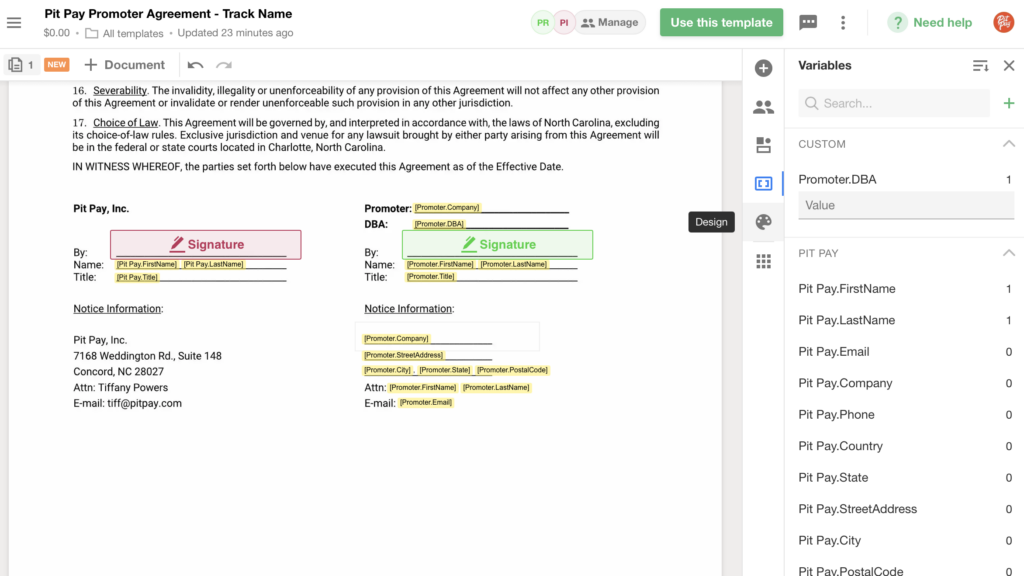
Click on the appropriate template – “Pit Pay Promoter Agreement – Track Name” or “Kart Pass Promoter Agreement – Track Name” or “Ticket Hoss Promoter Agreement – Track Name” to open the template, make sure it’s the right one
Click “Use this template” button at the top right
Select the Pit Pay signer (make sure all info for the Pit Pay Signer is filled out)
Enter the info for the Promoter signer – Email, First Name, Last Name, then click “See more fields” and enter Company Name (this is the legal business entity), Job Title, Phone and Address, then click “Continue”
Click the variables button in the menu just to the right of the document
Scroll down to the empty / highlighted ‘Promoter.DBA’ field and type the DBA (the track or series name, NOT the legal entity)
Look through the document to make sure all the fields have been filled in properly and are aligned (page 1 and page 4 are where all the fields are)
You may have to line some of the data fields up after the data populates (drag & drop)
Click “Send”, then “Send via email” and then when it asks for the document name, replace “Track Name” with the name of the track or series, then send it
Once the agreement has been signed, you can save it to Box
Go to “Partners”
Go to either “Tracks” or “Series”
Tracks: Duplicate the Track Folder Template and move it inside of the appropriate state folder if you’re in tracks (or create a new state folder if needed), then rename the duplicated folder to the track name, then save the signed Promoter Agreement under “Agreements”
Series: Duplicate the Track Folder Template, then rename the duplicated folder to the Series name, then save the signed Promoter Agreement under “Agreements”
Stripe Setup
After the agreement has been signed, the Promoter will need to setup their Stripe account. They may have done this already if they signed up on Ticket Hoss. Eventually, all 3 platforms will work this way.
For now, if they are signing up on Pit Pay or Kart Pass, they will need to download the respective app and sign up for an account. Then, you can find their user in the respective Dashboard user database and convert them to a “Track” account. They will need to login to the PP/KP Dashboard to setup Stripe.
All Stripe connected accounts are setup through either the Pit Pay, Kart Pass or Ticket Hoss Dashboards.
Stripe setup is part of the onboarding flow for Ticket Hoss, and soon will be for the other 2 apps, but in the meantime, those promoters just need to go to “Stripe” in the Dashboard menu to setup their Stripe account after they are signed in.
It’s important that they input their BUSINESS info, and not personal info so that their 1099 is correct at the end of the year. They can edit their Stripe information, but we cannot.
Promoters MUST setup the Stripe account before we put any of their events on sale, but it’s very quick if they have their business checking account info and their EIN/TIN handy
If the Promoter is using multiple apps (ie. Pit Pay AND Ticket Hoss), they will need to onboard and setup Stripe twice – once in the Pit Pay Dashboard and once in the Ticket Hoss Dashboard
Verify that they have setup their Stripe account
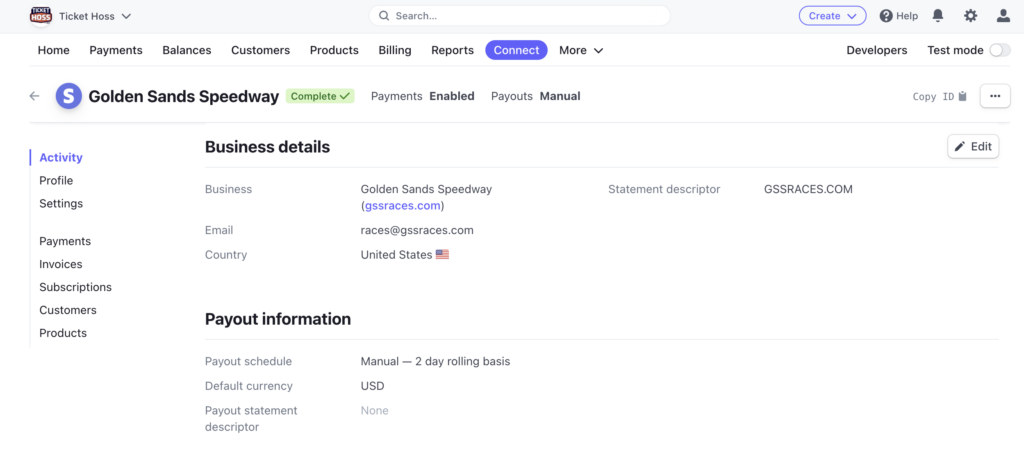
Once you believe a promoter has setup their Stripe connected account, you’ll need to go to the correct Stripe dashboard and make sure you see the connected account at the top of the list.
Click on the connected account and look over the details. You’ll want to make sure the account is set to manual payouts (under account details midway down the page).If you see any type of automatic payout, you’ll need to switch it to manual and then check with Bobby immediately to see if the account is connected properly on the backend.
This is usually the most obvious sign that the account didn’t get connected properly and it’s something he can easily correct on his end.
The most common reason this occurs is when the email address entered into the Stripe onboarding flow doesn’t match with the email given while the promoter was onboarding with our dashboard.